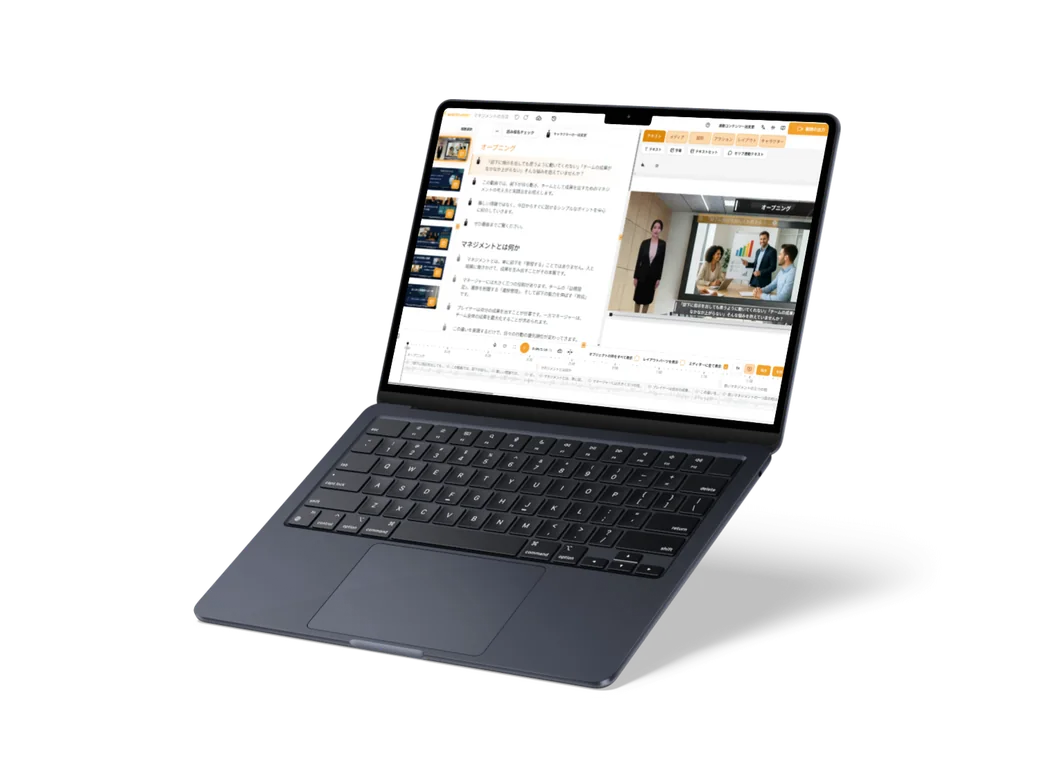
FeaturesFrom documents
Feature 01 · Create
From documents
PowerPoint, Word or PDF, straight into video
Just add the documents you always use, and the AI prepares a script and narration and turns them into an explainer video. You can turn them into video while keeping the look of your slides.
What it does
What it does
Your usual documents, straight into video
Just add a PowerPoint, Word or PDF file. Each slide becomes 1 scene, and the AI writes a spoken-style script and subtitles from the text and notes in your documents. You can also add how you want it spoken, such as "Avoid technical terms."
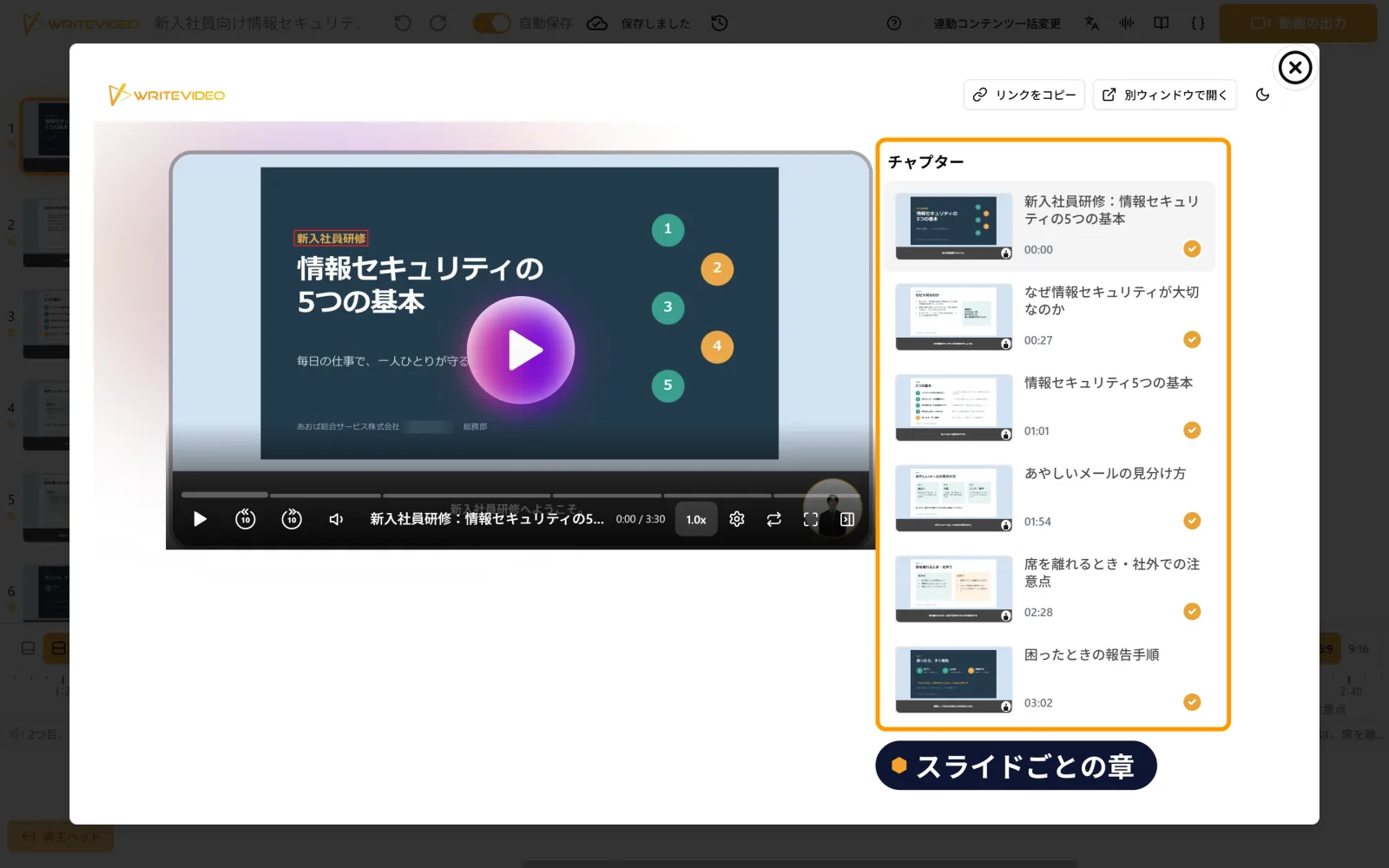
Reads PDFs whose text is an image
Even in PDFs where the text is an image, OCR (text recognition) reads the content and turns it into a script and subtitles. If a page has text that is hard to read, the app itself suggests using OCR.
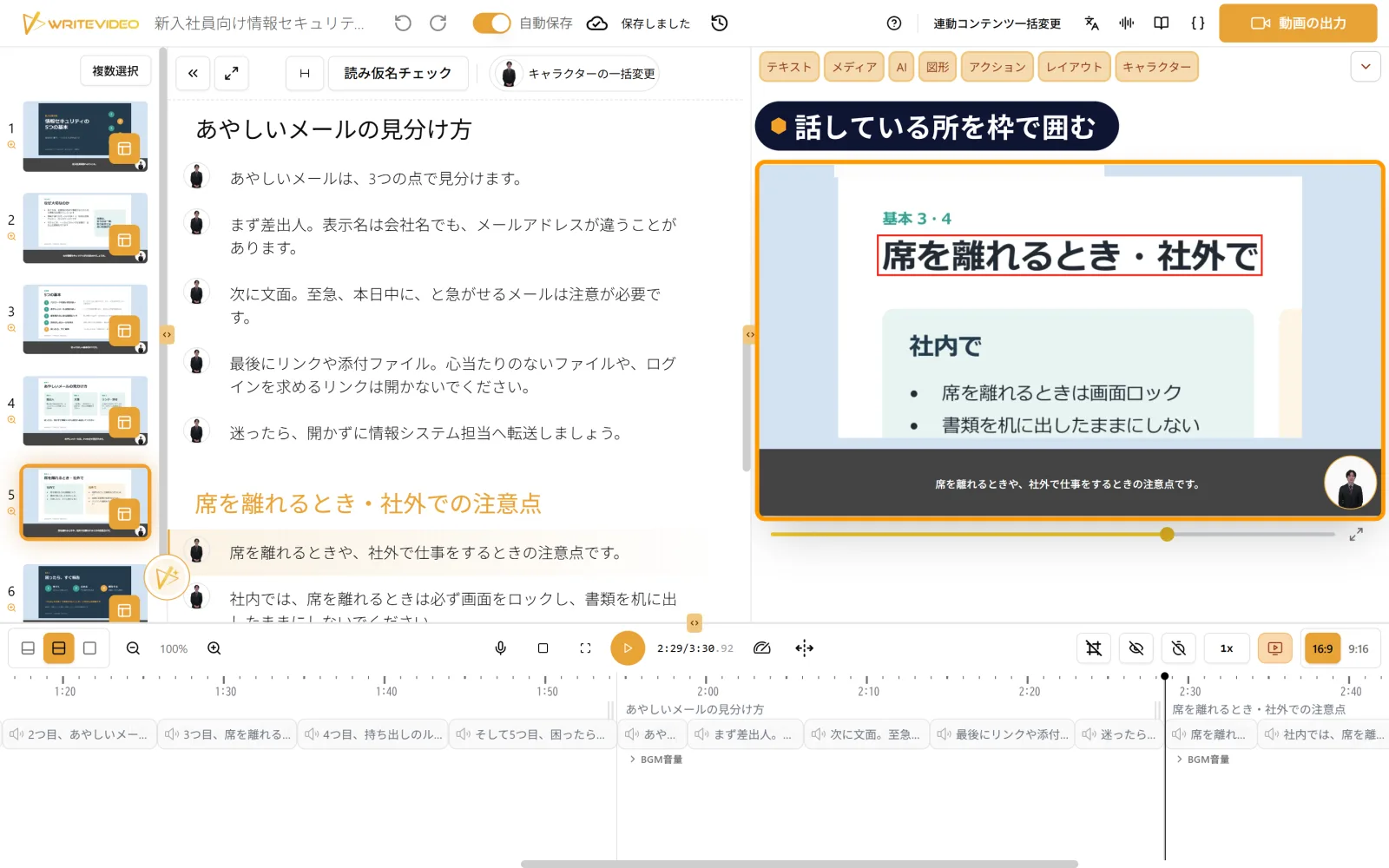
The screen moves in on what is being talked about
Create with "Auto highlight frame" (自動ハイライト枠) (beta) and "Auto zoom" (自動ズーム) selected, and the part being explained is framed and the screen zooms in on it as the explanation goes. Even with text-heavy documents, viewers can follow what is being talked about.
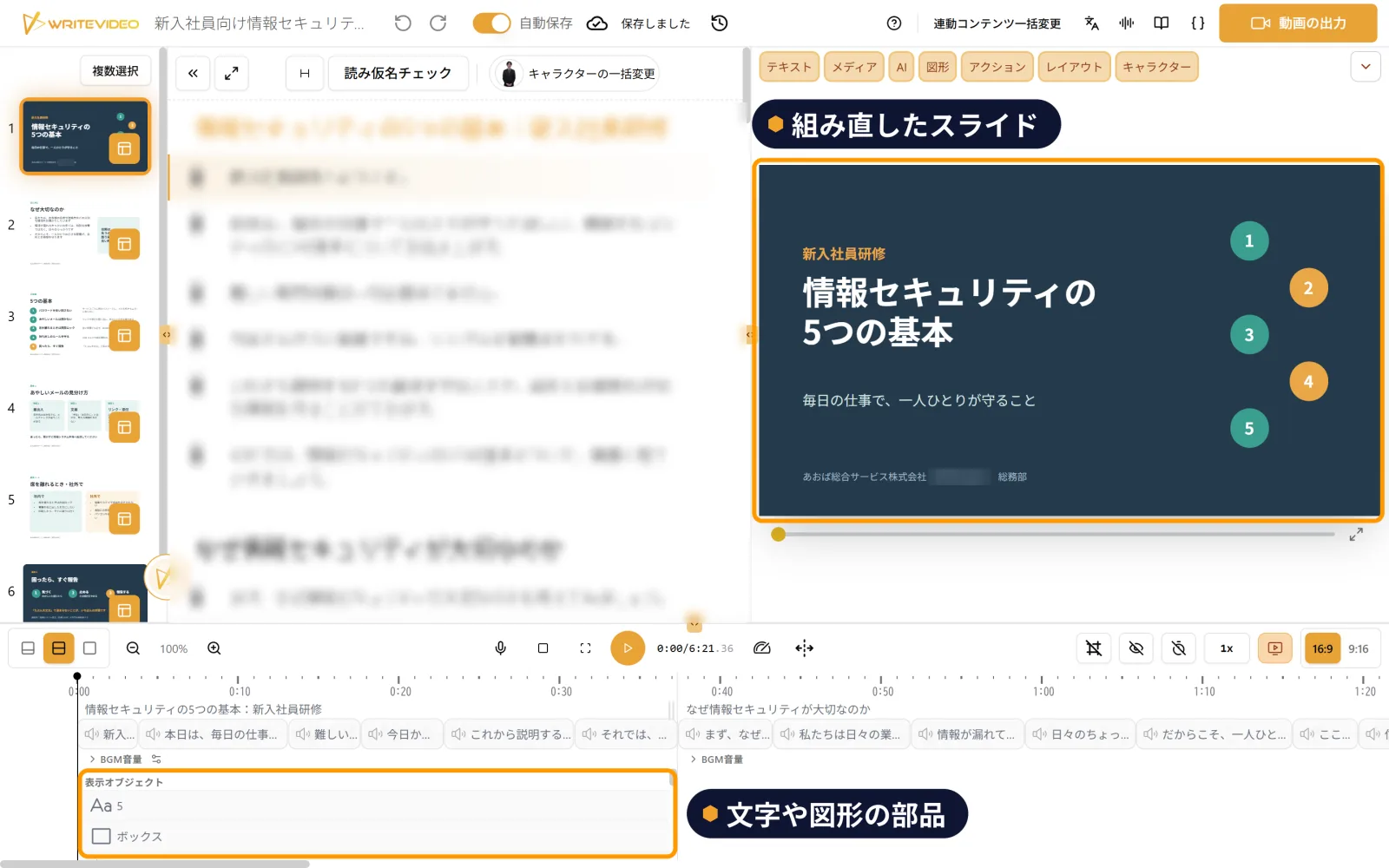
Rebuild it as text and shapes
In "Re-editable mode" (再編集可能モード) (beta), slides are rebuilt as text and shapes instead of being pasted in as a single image. When viewers switch languages, even the text on screen is translated.



Features
Features to use with it