Guides & tipsUpdated
From documents to explainer videos: 3 ways to make them, to suit your purpose
Even with the same document, the video you end up with changes depending on the method you choose. We turned one PowerPoint training document into video with each of WriteVideo's 3 methods and compared them side by side.
We used materials for new employee training (information security).
1. The 3 methods, and the videos they made
| Method 1: as is | Method 2: reassemble | Method 3: rebuild | |
|---|---|---|---|
| What you use | "Create from file" (ファイルから作成) | "Re-editable mode" (再編集可能モード(β)) | "AI Director" (AI ディレクター(β)) |
| Visuals | The slide images as they are | The slides reassembled as text and shapes | Newly built from text, shapes and illustrations |
| The video made | 6 chapters, 3 min 30 sec | 6 chapters (the same number as the slides) | 14 chapters, 2 min 48 sec |
The video lengths are for this example (our own measurement). With every method, once you put in the document, the AI prepares the script and narration.
2. Comparison 1: how the visuals are built
With method 1, the slide images become the visuals as they are. This time we also chose "Auto highlight frame" (自動ハイライト枠) (beta) and "Auto zoom" (自動ズーム): a red frame appeared around the part being talked about, and the view zoomed in on it. The recording below shows method 1, from putting in the document to the video being finished.
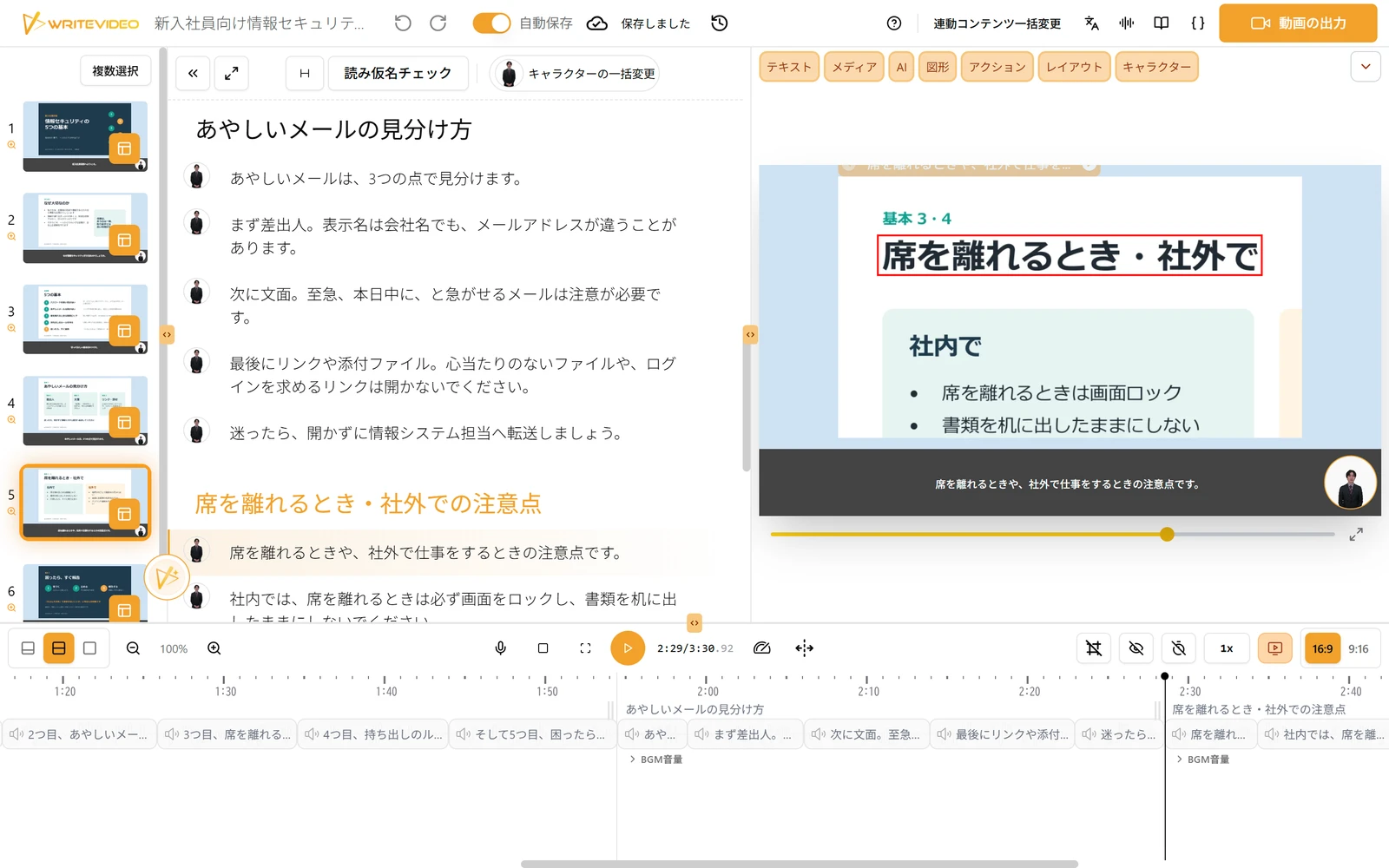
With method 2, the same slides are reassembled not as images but as text and shapes.
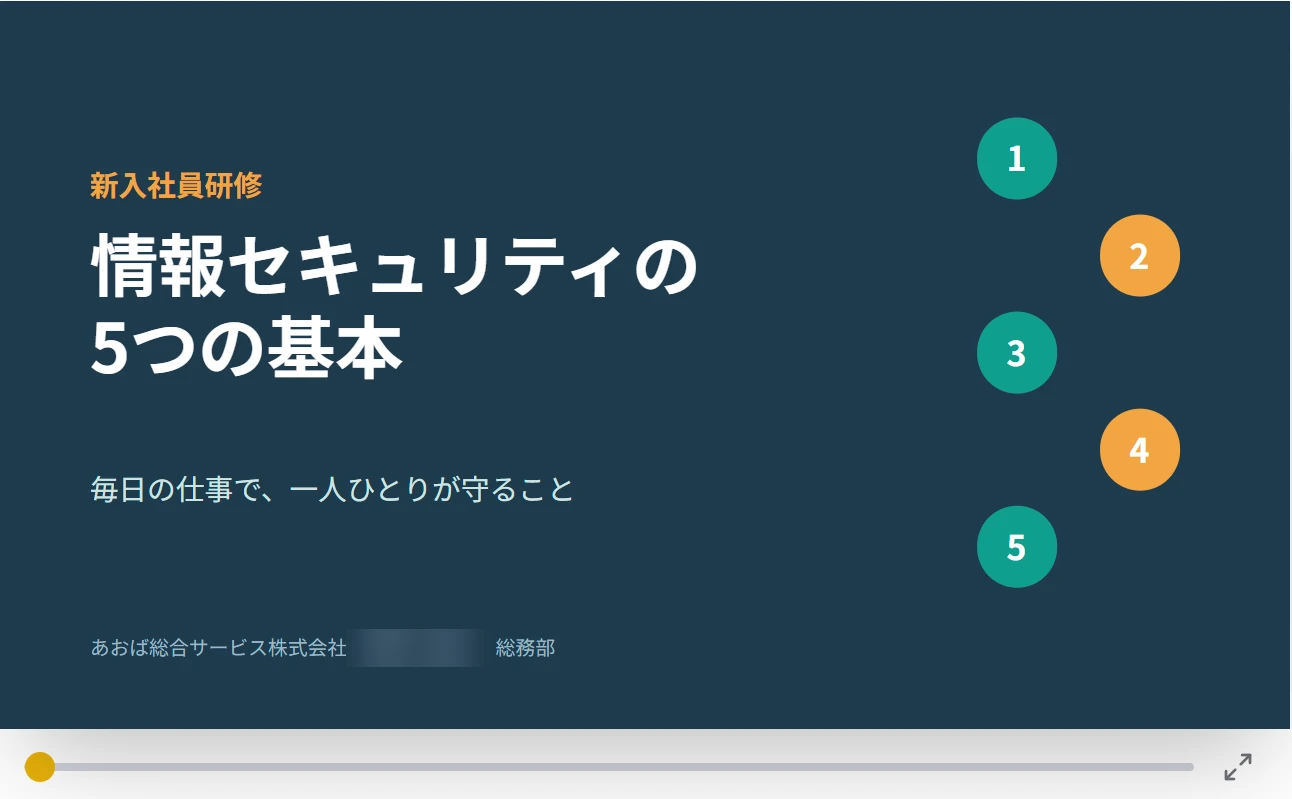
With method 3, the slides were not reproduced; the visuals were newly built from text, shapes and illustrations drawn by the AI.
3. Comparison 2: script and structure
With methods 1 and 2, each slide becomes one chapter, so there are 6 chapters, the same as in the document. The script for method 1 was written in a conversational style, based on the words on the slides and the phrasing in the speaker notes.
With method 3, we attached the document and described the video we wanted in writing.
"Based on this document, please make a training video of about 3 minutes for new employees. Divide it into sections, and at the end, sum up the key points we want them to remember. Explain technical terms in plain words." (この資料をもとに、新入社員向けの3分くらいの研修動画にしてください。章ごとに区切って、最後に覚えてほしい要点をまとめてください。専門用語はかみくだいて。)
The AI read the document and, while also searching the web, made a storyboard and rebuilt the video starting from its structure. The result has 14 chapters: each of the 3 sections has its own opening scene, and it ends with a summary of the key points and an ending. Technical terms were put into plain words, and a conversation scene in which a new employee reports to a senior colleague was also added.
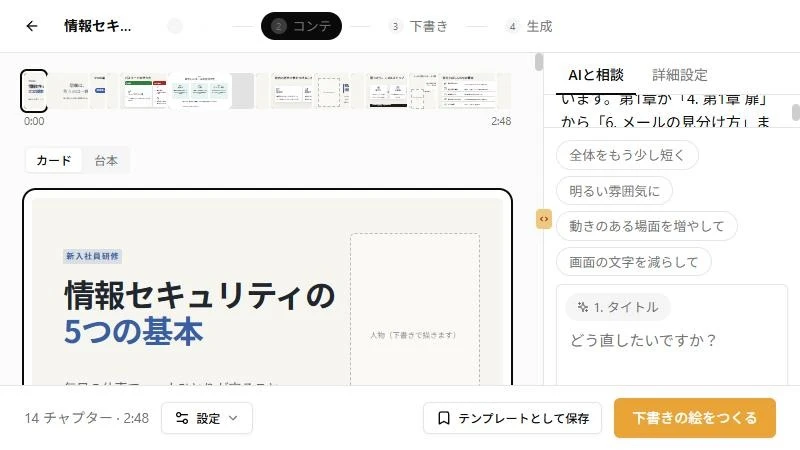
While looking at the storyboard, you can also say what you want changed in the "Talk with AI" (AI と相談) panel.
4. Which should you choose?
| When you want to | Method to choose |
|---|---|
| Turn it into video quickly, keeping the look of the document | 1: as is |
| Handle the slide text as text in the video, or translate even the text on the slides | 2: "Re-editable mode" (再編集可能モード(β)) |
| Rebuild it from the structure and how it is shown | 3: "AI Director" (AI ディレクター(β)) |
When you make a video from slides, as in method 1, we recommend writing what you want said in the speaker notes. The phrasing in the notes is carried into the script.